How to Use HabitGrip: A Beginner's Guide
Learn how to use the HabitGrip app: add habits, set schedules, track progress, use reminders, and build a routine that fits real life.
HabitGrip is a local-first habit and task tracker for people who want a clear daily check-in without turning their routine into a guilt machine. To use HabitGrip, add the habits that matter, choose a rhythm that fits your week, and track them from Today.
This HabitGrip app tutorial walks through the full setup: choosing a habit type, creating flexible schedules, using reminders, reviewing progress, and pausing a routine when real life gets busy. The app is available now on Google Play, so you can install it and follow along as you read.
Quick start: use HabitGrip in three steps
- Add the habits that matter. Start with one to three routines you genuinely want to notice, such as walking, reading, or drinking water. You can add tasks too, but keep the first Today view easy to scan.
- Choose the right type and schedule. Use a simple yes/no check when completion is binary; use a number or timer when the amount matters. Then choose when the activity should appear.
- Track completion from Today.Open the day's list, record what happened, and move on. The goal is an honest record you can learn from, not a perfect performance.
Choose the right habit type
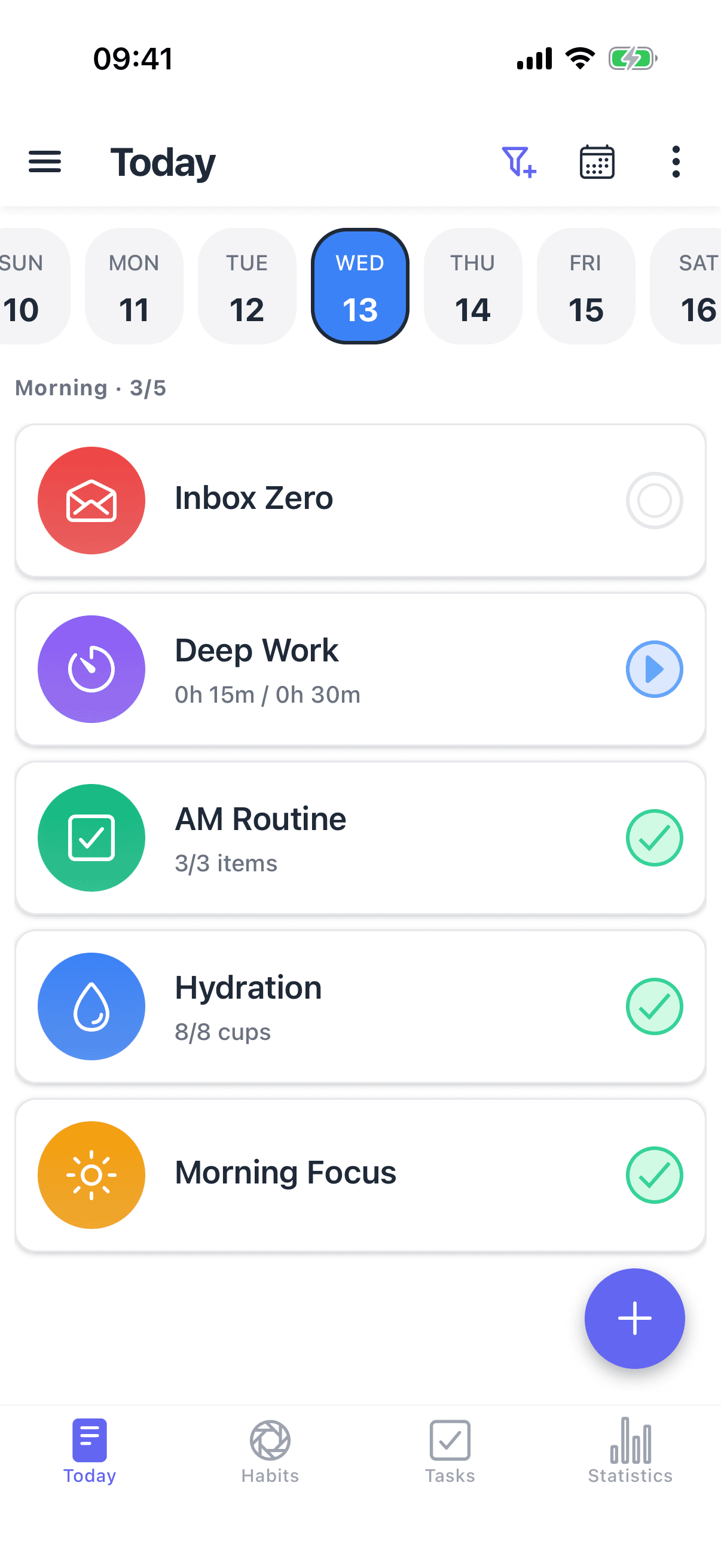
A good setup reflects how you already think about the behavior. If the tracker asks for more precision than the habit needs, checking in becomes work. HabitGrip supports four useful formats:
- Yes/no habits: use these for a clear action such as taking medication, stretching, or going for a walk.
- Numeric goals: record an amount such as glasses of water, pages read, or kilometers walked.
- Timer habits: track time spent meditating, exercising, or doing focused work.
- Checklist habits: break a routine into steps when completing the pieces matters as much as finishing the whole.
Choose the smallest useful measurement. A yes/no habit is often the best starting point; add a target or timer when the extra detail will change your decisions.
Set a schedule that fits real life
HabitGrip schedules are flexible enough for routines that are not daily. Pick the cadence you can repeat instead of copying an ideal week that does not exist.
- Daily: for habits that belong in your normal everyday routine.
- Specific weekdays: choose days such as Monday, Wednesday, and Friday for a class or workout plan.
- Every N days: use an interval for habits that need recovery time or rotate through a longer cycle.
- Weekly frequency: set a target such as three completions per week when the exact days can vary.
Build a simple daily check-in
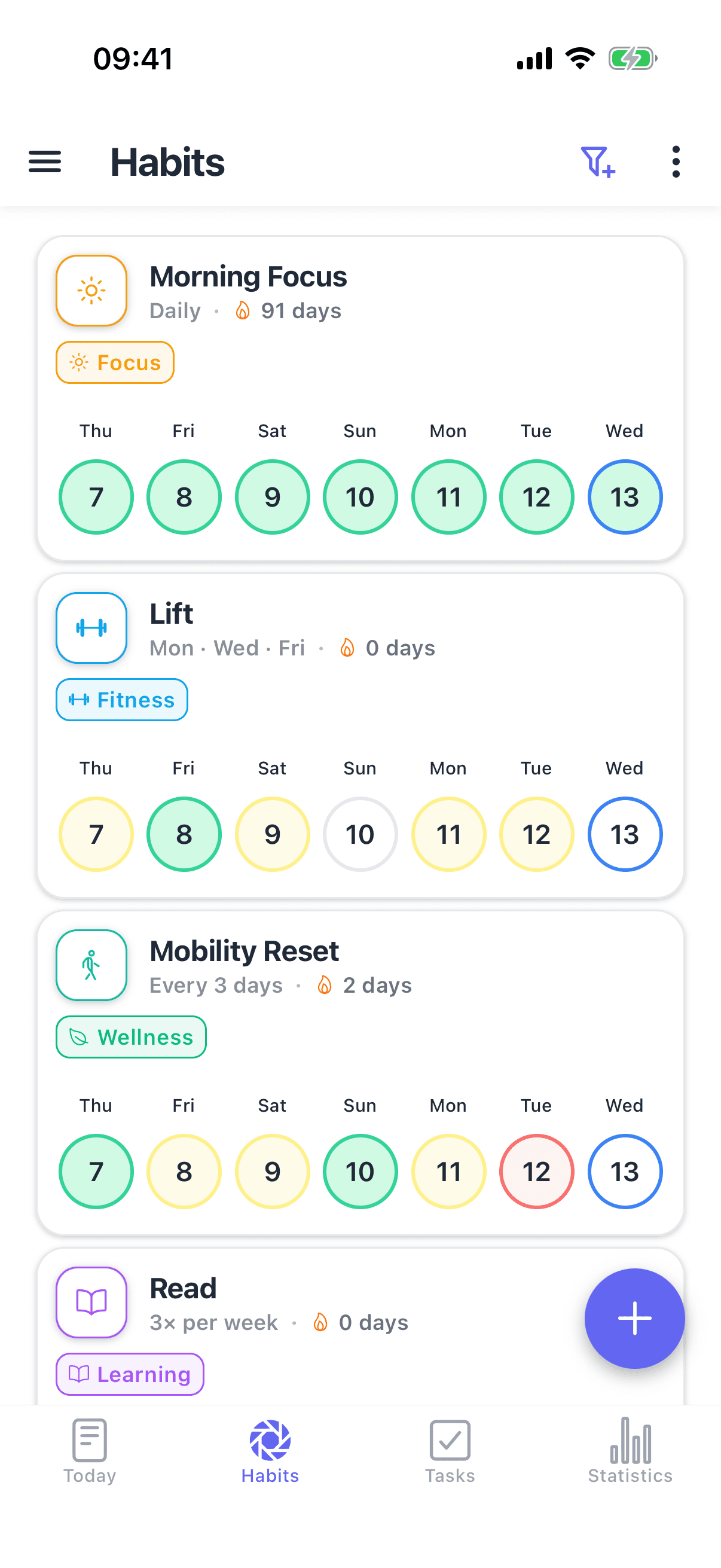
The Today view is the center of the HabitGrip workflow. Use it as a short morning or evening check-in rather than a dashboard you need to study all day.
- Open Today. See the habits and tasks scheduled for the current day.
- Mark progress honestly. Record a completion, a partial numeric result, a timer, or a deliberate skip when that is what happened.
- Use reminders as prompts, not pressure. Add a reminder to the habits you routinely forget and leave the rest quiet. Too many notifications make the check-in easier to ignore.
If you are learning how to track habits on your phone, this small daily loop is enough: see what is due, log what happened, and return to your day.
Review progress without chasing perfection
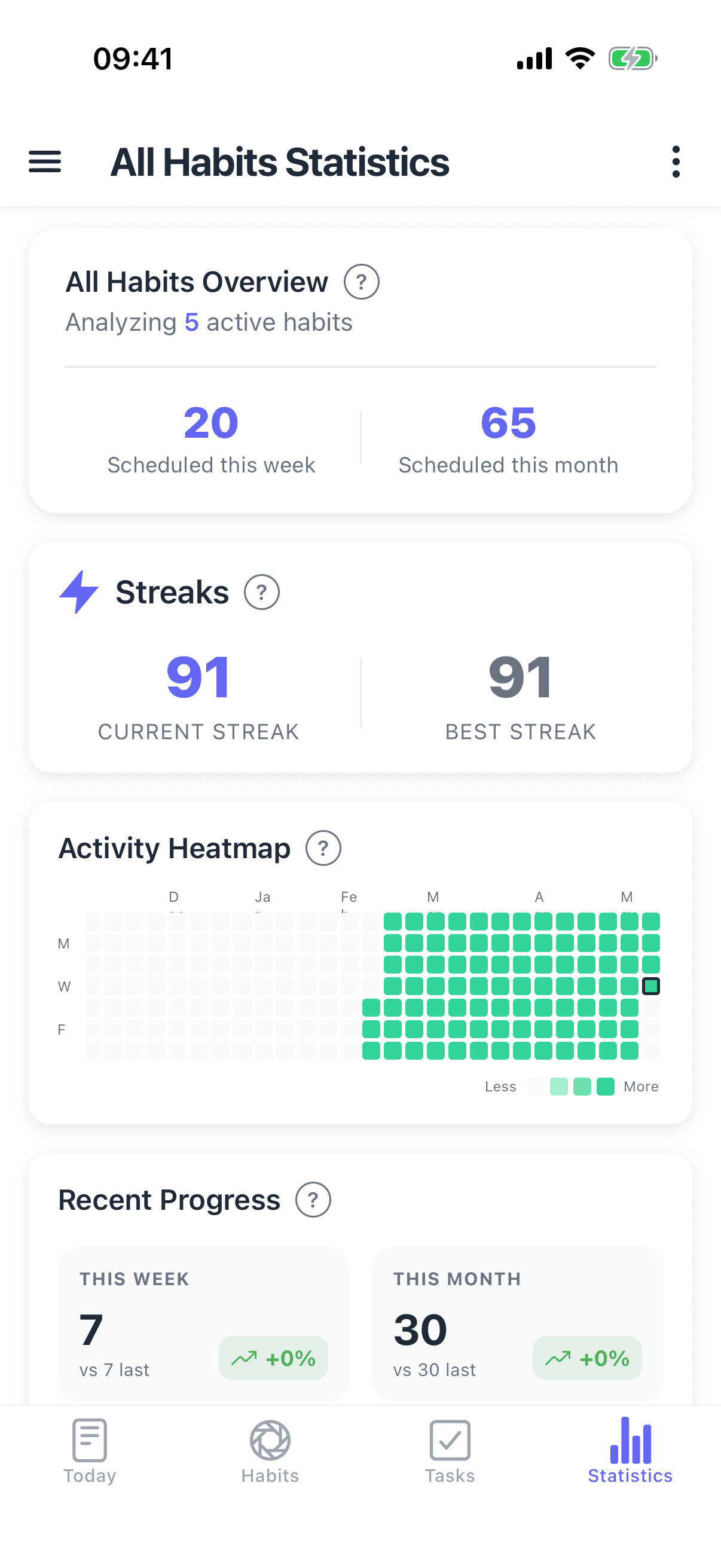
Use the statistics view when you want to understand a pattern, not every time you check off a habit. Heatmaps show the shape of your history, streaks show consecutive activity, and momentum and consistency trends help you see whether the routine is becoming more reliable over time.
A missed day is information, not a verdict. For a deeper explanation of this approach, read our guide to tracking habits without obsessing over streaks.
Use HabitGrip for more than habits
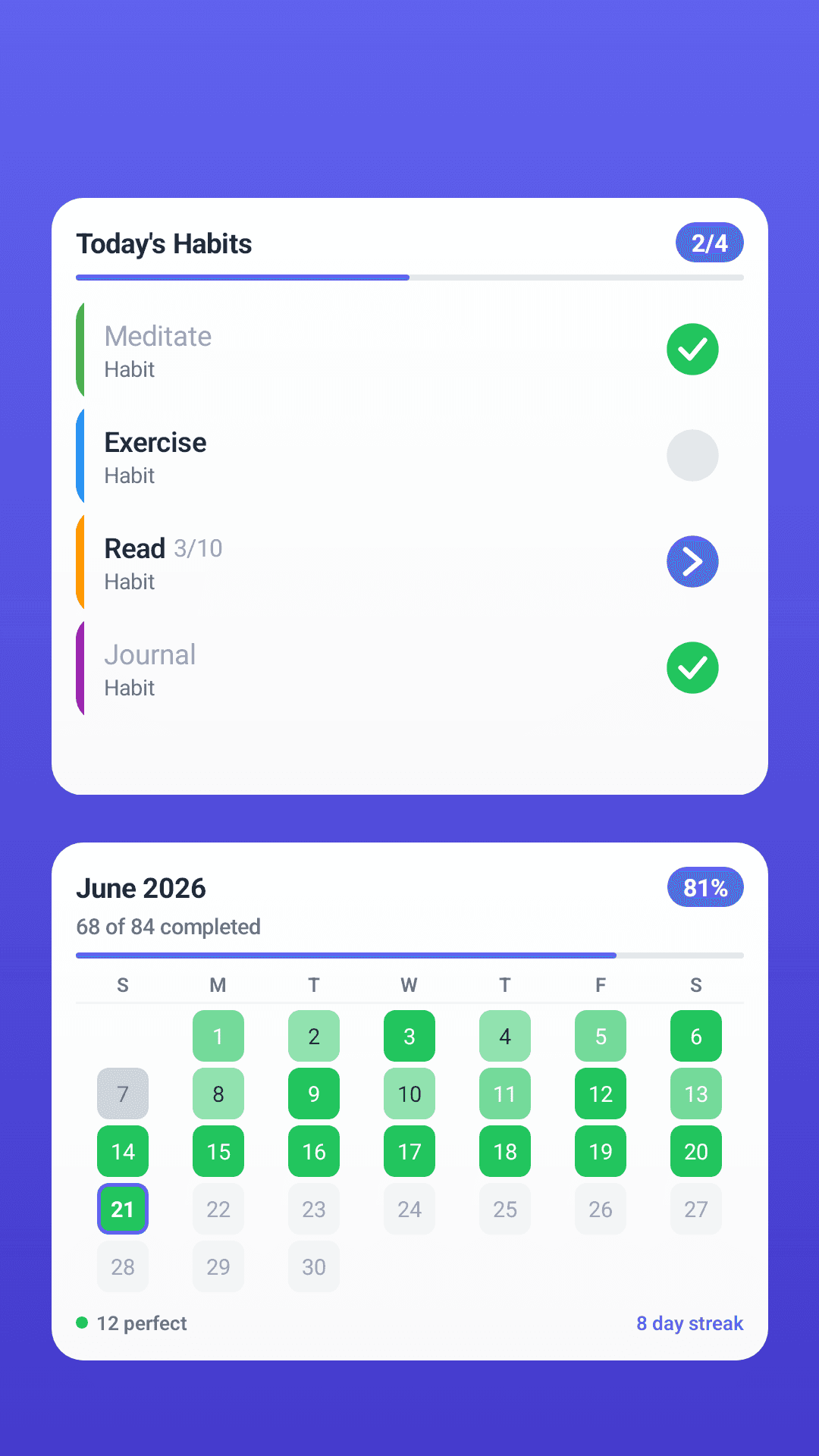
HabitGrip can grow with the way you organize your life. Add one-off or recurring tasks next to habits, create profiles for contexts such as personal, work, or fitness, and use tags and filters to keep a busy Today view focused. Widgets provide at-a-glance views of Today, streaks, heatmaps, and momentum without requiring you to open the app.
Pause instead of abandoning a routine
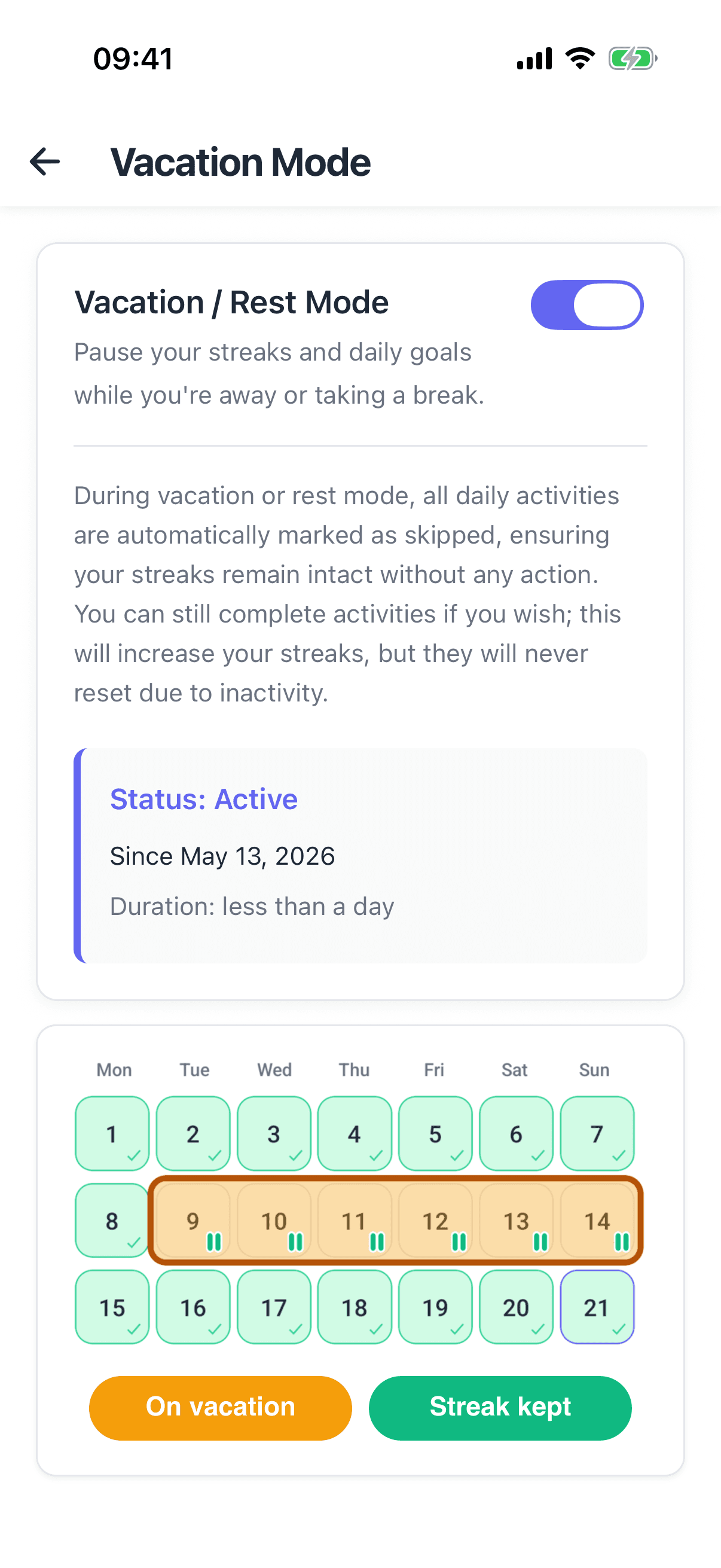
Travel, illness, and overloaded weeks happen. HabitGrip's Vacation Mode lets you pause habits for a planned break so your history stays intact and your routine can resume afterward. It is a useful way to protect consistency without pretending that every week has the same shape.
See how this fits into HabitGrip's broader approach in our guide to choosing between HabitGrip and Loop Habit Tracker, including the section on Vacation Mode and flexible schedules. Compare HabitGrip with Loop Habit Tracker.
Privacy, offline use, and sync
HabitGrip is local-first: basic tracking can happen on your device without an account or an internet connection. If you want to use more than one device, optional sync keeps your data aligned and is encrypted in transit. You stay in control of whether sync is part of your setup.
HabitGrip also supports local backups and exports, which are useful when you want a separate copy of your data or need to move from another tracker. For the full schema, see the custom import documentation.
Coming from another habit tracker?
Start by deciding what you want to carry forward: active routines, schedules, tags, and history. HabitGrip has a custom JSON import format for moving data from other tools, and the import documentation explains the supported fields. If you are moving from Loop, read the dedicated HabitGrip and Loop comparison for the current migration notes before exporting anything.
Frequently asked questions
Do I need an account to use HabitGrip?
No. HabitGrip is local-first and can be used without an account for everyday tracking. An account is only needed for optional features such as syncing your data across devices.
Can I use HabitGrip offline?
Yes. HabitGrip is designed to work offline, so you can check in without an internet connection. Optional sync can keep devices aligned when you choose to use it.
Which habit types does HabitGrip support?
HabitGrip supports yes/no habits, numeric goals, timer habits, and checklist-style activities. Pick the format that matches how you actually measure progress.
Can I create non-daily schedules?
Yes. You can schedule habits for specific weekdays, repeat them every N days, or set a weekly frequency goal such as three times per week.
How does Vacation Mode work?
Vacation Mode pauses habits for a planned break so travel or time away does not turn into a string of missed days. Your history remains available and the routine can resume afterward.
Can HabitGrip track tasks as well as habits?
Yes. HabitGrip supports one-off and recurring tasks alongside habits, so your Today view can hold both repeatable routines and the work that needs doing once.
Start with a routine you can keep
The best HabitGrip setup is not the most elaborate one. Add a few meaningful habits, give them realistic schedules, and use Today to make a quick honest record. You can add detail later when it helps you make better decisions.
Want a framework for choosing which habits to track first? See our guide on applying Atomic Habits to a habit tracker.
Get the HabitGrip app tutorial in your pocket
HabitGrip is available now on Google Play. Install the local-first habit and task tracker and set up your first routine in a couple of minutes.