Home Screen Widgets That Actually Make You More Consistent
Android widgets put your habits one glance away — no app-opening friction. Which widget layouts help consistency, and how to set them up.
The short answer: yes — a home-screen widget removes the biggest friction point in habit tracking, which is opening the app. A one-tap widget turns the habit loop (cue → behavior → reward) into a single glance. Here's how to use Android widgets so they actually improve consistency, instead of becoming wallpaper.
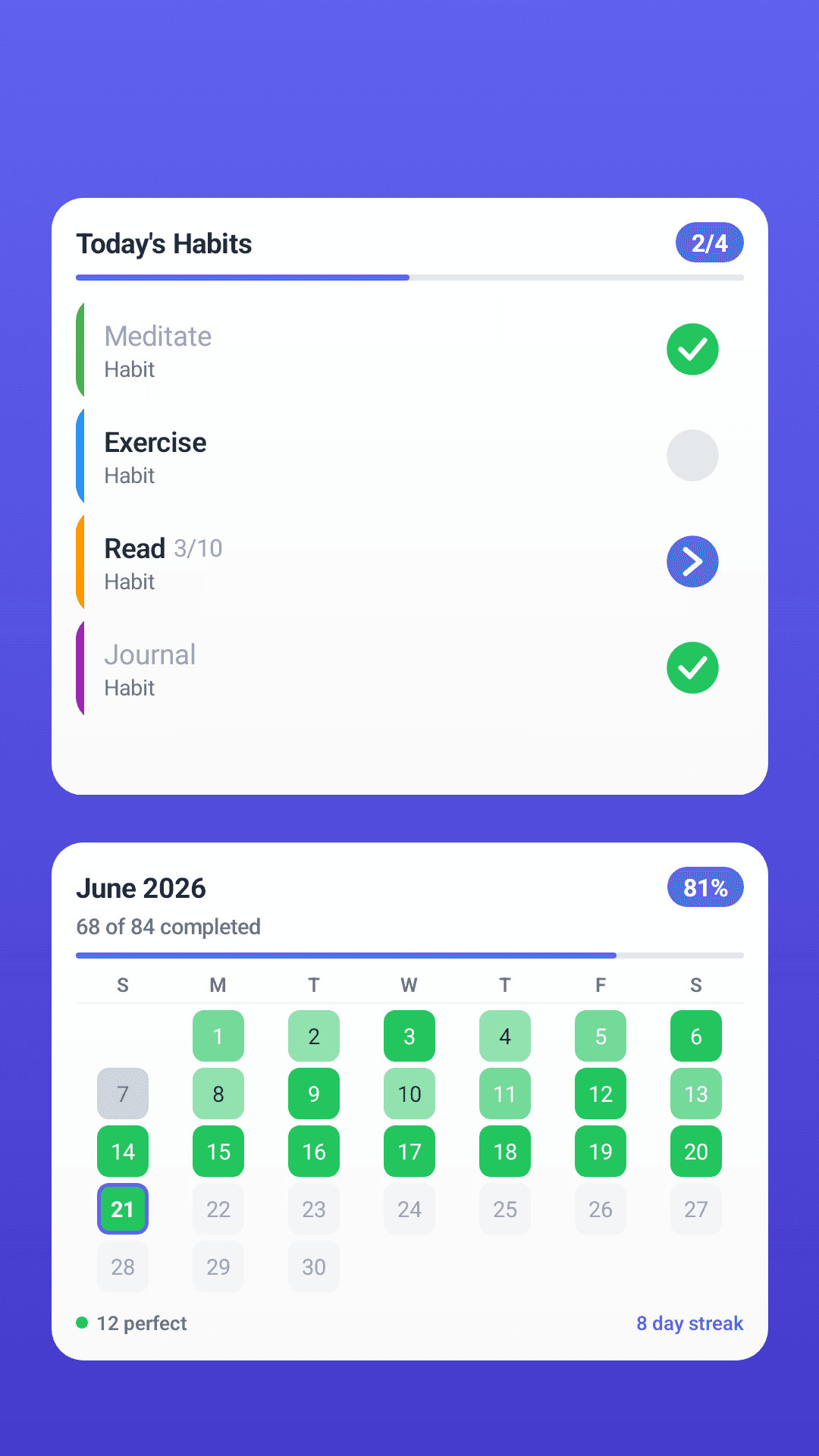
Today's habits, one glance and one tap away.
Why widgets beat reminders for keystone habits
Reminders work by interrupting you. Widgets work by being present. The difference matters: an interruption demands attention you may not have, while a visible tile on the home screen nags nobody — it just sits in your field of view every time you unlock your phone, which for most people is dozens of times a day.
Every unlock becomes a micro-cue. Checking the habit off takes one tap, and the reward (the satisfying checkmark, the tile turning green) arrives instantly. Behavioral scientists would call this reducing the response cost to nearly zero. Practically: it's the difference between "I'll log it later" (never) and "done" (now).
Which widget layout for which job
- Single-habit tile (small). One habit, one check-off button. Best for your keystone habit — the one that, if done, makes the rest of the day work. Put it where your thumb lands on the home screen.
- Multi-habit list (medium). Three to five habits with today's status. This is the daily dashboard — best placed on the home screen, not buried in a folder.
- Progress/hero widget (large). Bigger surface for momentum or today's completion at a glance. Motivational rather than functional — nice on a secondary home screen.
The anti-pattern to avoid: a widget grid of fifteen habits. The glance becomes a to-do audit, and you stop looking. Widgets reward curation — choose the two or three habits you must not miss and let the widget do its one job.
Setting up HabitGrip widgets on Android
- Long-press an empty area of your home screen and choose Widgets.
- Find HabitGrip in the list and browse the available sizes.
- Drag the widget to where your thumb naturally lands — bottom-right for most right-handed people.
- Assign your keystone habits to it (if the widget prompts a selection).
- Check off from the home screen — no app launch needed. The widget updates instantly and works fully offline.
Widgets are included in HabitGrip's free tier. They pair well with fixed-time reminders: the widget is the always-on surface, the reminder is the safety net for days you never unlock the phone near your anchor time. Our beginner's guide to HabitGrip covers both.
Why offline matters for a widget
A widget that needs a server round-trip to mark a habit done fails exactly when life happens: on a plane, on a trail, on a train through a dead zone. HabitGrip is local-first — your habit data lives on your device, and the widget reads and writes directly to it. One tap, instant update, no spinner, no account. (If you later opt into cloud sync, the widget experience doesn't change.)
Frequently asked questions
Do habit tracker widgets actually help consistency?
Yes — they remove the single biggest friction point in habit tracking: opening the app. A widget puts today's habits on your home screen, so checking one off takes one tap and happens in the same glance as your other notifications. Cue, behavior, reward, all in under three seconds. That's the whole habit loop.
Does HabitGrip have home screen widgets?
Yes. HabitGrip ships home-screen widgets on Android, including in the free tier: compact single-habit tiles for one-tap check-offs, and larger widgets that show several habits at once. Add them by long-pressing an empty spot on your home screen, choosing Widgets, and picking HabitGrip.
What size Android widget should I use for habits?
One 4x1 or 2x2 widget with your two or three keystone habits outperforms a full-screen habit dashboard. If a widget shows fifteen habits, the glance becomes a task list and you stop looking at it. Keep the home screen widget to the habits you must not miss.
Do widgets drain battery or need internet?
A well-built widget updates only when data changes and costs effectively nothing. HabitGrip's widgets work fully offline — your habit data is stored on-device — so they keep working in airplane mode, on a hike, or after a restart.
One tap beats ten minutes of setup
The best widget setup is unimpressive: one tile, two or three habits, thumb distance from your usual unlock point. Set it up once, and the app does the remembering every time you unlock your phone.
If your widget shows a dead habit you've been ignoring, that's data too — archive the habit or shrink it. And if streak pressure is what made you stop opening the app in the first place, read how to track habits without obsessing over streaks.
Put today's habits on your home screen
HabitGrip's Android widgets check off habits in one tap — included in the free tier, fully offline, private by default. No account required.